
Why You Need Dropbox to FTP Sync?
Dropbox and FTP serve different purposes, but many people use them together. Dropbox makes it easy to access and share files from anywhere, while FTP is still widely used for website hosting, application deployment, and file management on remote servers. Regardless of their differences, the two services allow you to transfer files between the computer and the cloud without complicated steps.
If you are both a Dropbox user and an FTP user, you can sync Dropbox with FTP servers to easily use and share the same file from different cloud services without downloading and uploading. Once do that, you can work in Dropbox without worrying about manually updating your FTP server every time a file changes.
- Dropbox to FTP sync can be especially useful if you:
- Update website files regularly. Changes made in Dropbox can be synchronized to your FTP server automatically, reducing the need for repeated uploads.
- Keep files consistent across locations. Sync helps ensure that the latest versions of your files are available in both Dropbox and your FTP server.
- Reduce manual work. Instead of downloading files from Dropbox and uploading them to FTP one by one, you can let the synchronization run automatically.
-
Improve team collaboration. Team members can edit files in Dropbox while the updated versions are synced to the FTP server, keeping everyone on the same page.
Best Way for Dropbox to FTP Sync - MultCloud
Here, we recommend MultCloud to you. MultCloud is a free and professional web-based multiple-cloud storage manager that allows you to add many clouds into one platform for cloud-to-cloud sync. It lets you connect Dropbox, FTP, Google Drive, OneDrive and more than 30 popular cloud storage services and online storage platforms in one place, so you can manage file synchronization without downloading or uploading files manually.
MultCloud also offers 10 sync modes to suit different needs. Whether you simply want to keep files up to date, mirror two locations, move files after syncing, or sync only selected files, you can choose the mode that best fits your workflow.
.png)
-
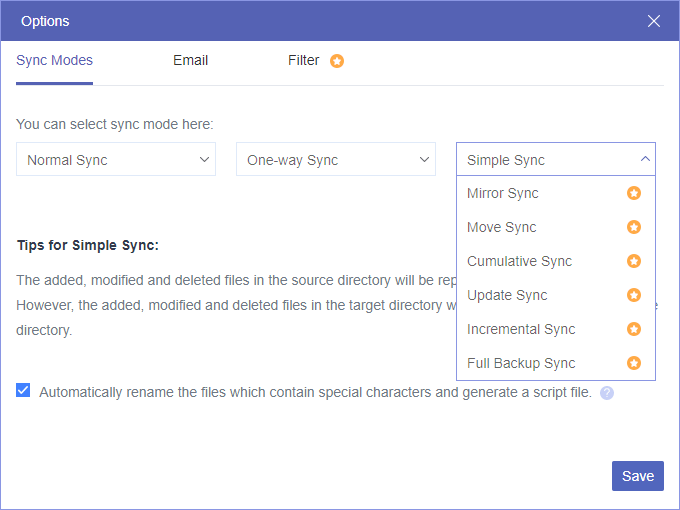
One-Way Sync: Automatically copy new, updated, and deleted files from the source to the destination without affecting the source folder. Choose from 8 sync modes to fit different scenarios, including Simple, Mirror, Move, Full Backup, Incremental, Update, and Cumulative sync. Advanced modes (the last six) are available with MultCloud Premium.
-
Two-Way Sync: Keep Dropbox and FTP (or any two connected storage services) perfectly in sync. Any files you add, edit, or delete in either location are automatically mirrored to the other, so both folders always stay up to date.
Next, we will show you how to sync Dropbox to an FTP server with MultCloud's Cloud Sync function.
How to Achieve Dropbox to FTP Sync with MultCloud
The operation of syncing Dropbox to FTP is so easy. It only requires you to add these cloud accounts to MultCloud, choose a sync mode, and click one button to start Dropbox and FTP sync without any concern. Here are the detailed instructions on how to sync files between Dropbox and FTP servers.
Step 1. Sign up MultCloud
Create an account with MultCloud. Or log in with your Google, Facebook, or Apple account.
Step 2. Add Dropbox and FTP to MultCloud
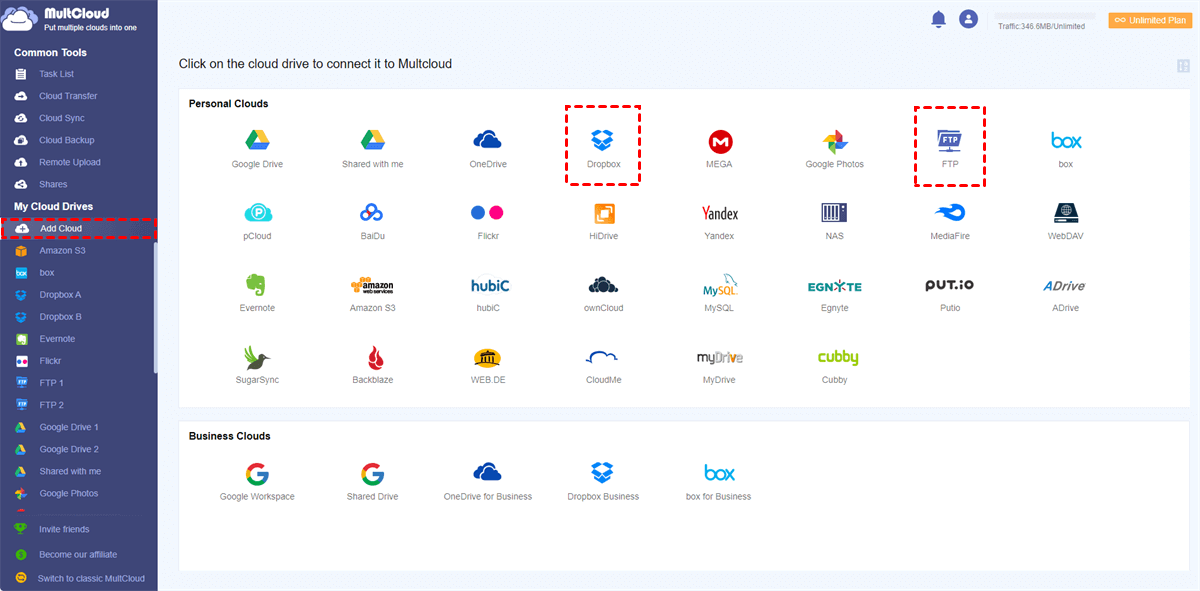
Add your Dropbox and FTP accounts to MultCloud by clicking "Add Cloud". Hit "Add Cloud" and choose Dropbox to add to MultCloud. Follow the instructions to grant MultCloud access to the account you are connecting to. After that, add an FTP account to MultCloud in the same way.
Tips:
- The OAuth authorization system enables MultCloud to connect your clouds without keeping the username and password.
- You can add all your cloud accounts to MultCloud safely for free.
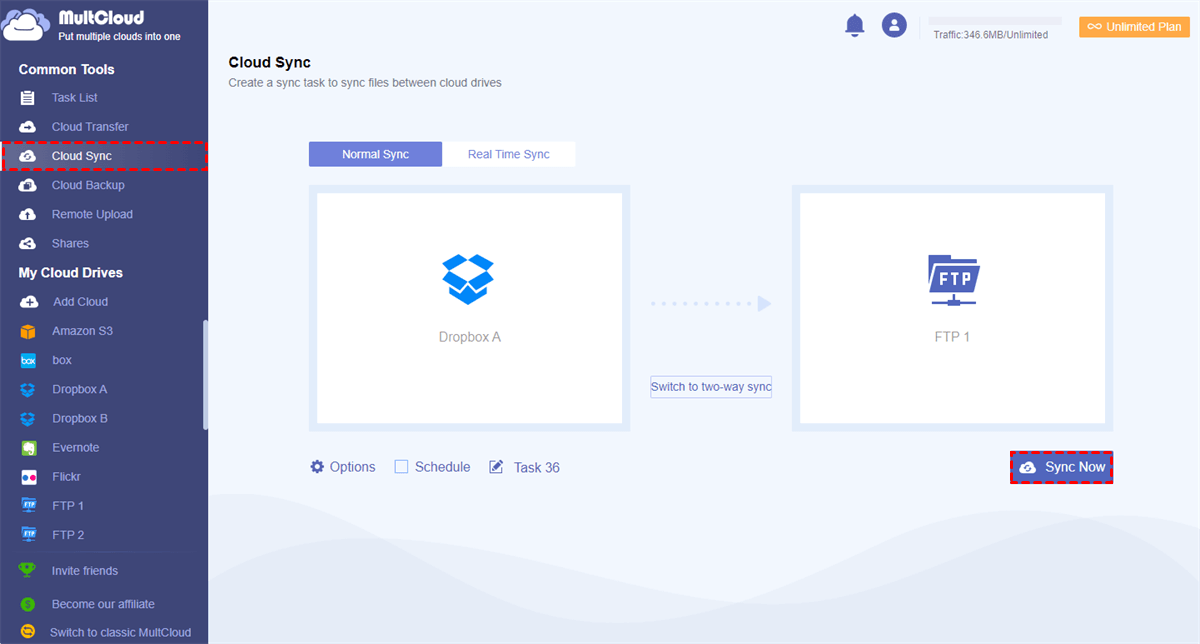
Step 3. Set up Dropbox FTP Sync by Cloud Sync
Select Dropbox files and folders as the source, and select a path in the FTP server as the destination.
Step 4. Choose a Sync Mode to Perform Dropbox and FTP Sync
Click "Options" to choose a sync mode according to your needs in the pop-up window. After that, click "Save" to close the window.
Step 5. Start to Sync Files from Dropbox to FTP Server
Click the purple button "Sync Now" in the lower right corner and MultCloud will sync Dropbox and FTP immediately. MultCloud supports offline sync, which means you can close the website or shut down your device once the task starts because it can be run in the background.
Tips:
- If you want to sync files between Dropbox and FTP server automatically and regularly, you can enable "Schedule" and MultCloud can run your task as a daily, weekly, or monthly plan.
- You can migrate everything from Dropbox to FTP server by ticking Dropbox while choosing the source. Besides, you can migrate certain file types with Filter in Options, specifying the file types to sync.
- Unlock to enjoy all premium features, including Filter, Schedule, 10 sync modes, high-speed sync (10 threads instead of 2), more data traffic, and so on.


- Smart Share: Share cloud files via public, private, or source mode.
- One-key Move: Quick data transfer, sync, and backup among clouds.
- Email Archive: Protect emails to other clouds or local disks.
- Save Webpages Entirely to PDF/PNG. Keep them locally or online.
- Remote upload: Effectively save web files to clouds via URL.
- Safe: Full-time 256-bit AES and OAuth authorization protections.
- Easy: Access and manage all clouds in one place with one login.
- Extensive: 30+ clouds and on-premise services are supported.
More Than File Transfer: Back Up Your FTP Website Files to Dropbox with MultCloud
Syncing Dropbox with FTP is a convenient way to keep files updated between different locations. However, synchronization alone may not be enough if your goal is to protect important website FTP/SFTP files from accidental deletion, server issues, or unexpected data loss. In these cases, having a separate backup copy can provide an extra layer of protection.
Besides file synchronization, MultCloud also offers a Website Backup feature that helps you back up website files from FTP servers to cloud storage automatically. With scheduled backups and Restore options, you can keep your website data protected and recover it whenever needed.
Step 1. After log into MultCloud account, select "Website Backup" in the left sidebar.
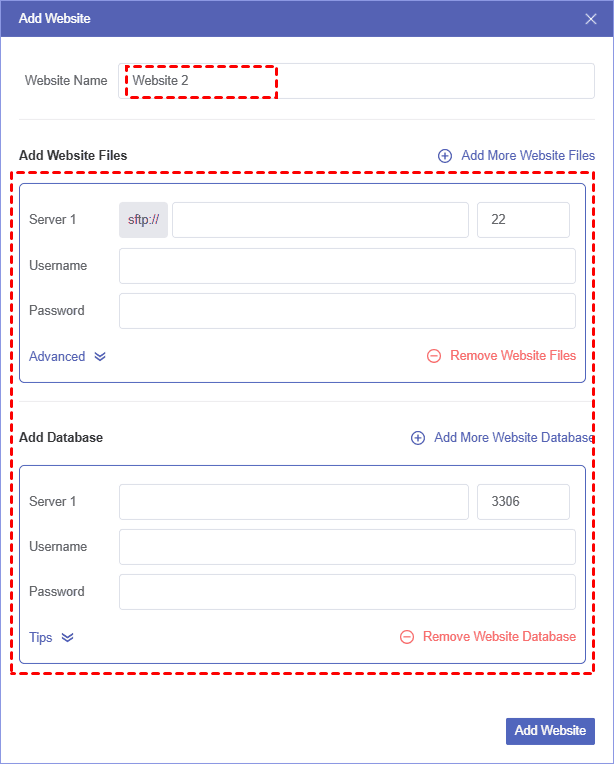
Step 2. Click "WEBSITE TO BACKUP" > "Add Website". Enter your host, username, password and port to connect FTP server to MultCloud. Add Dropbox with the same way in "WHERE TO SAVE BACKUP" if not ready.
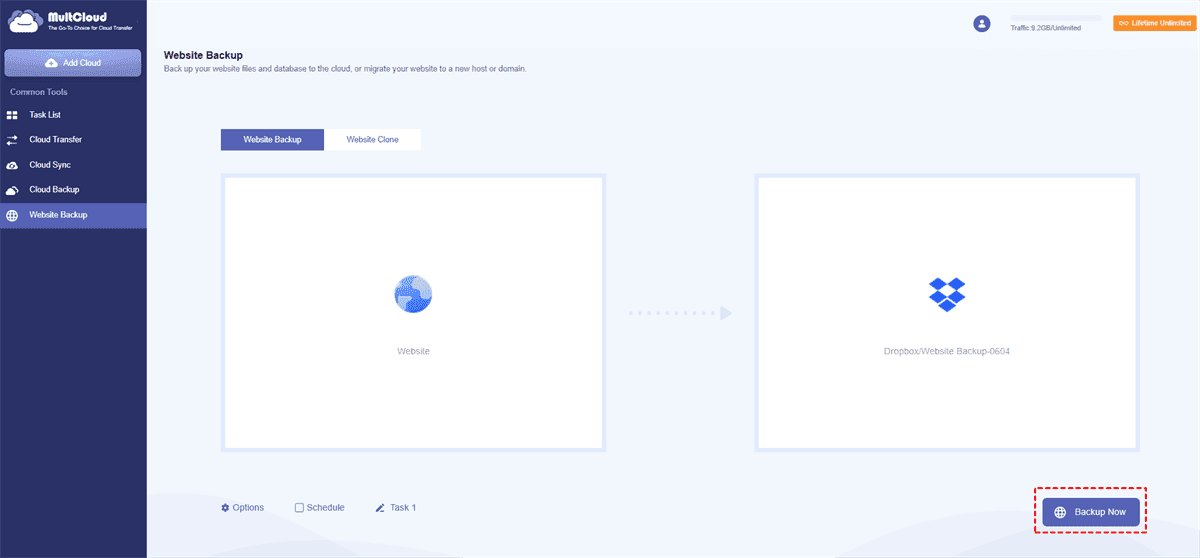
Step 3. Select the files you want to back up and choose the destination folder, then click "Backup Now". Similar to Cloud Sync, you can also customize your backup settings from the Options and Schedule buttons.
- ★Tips:
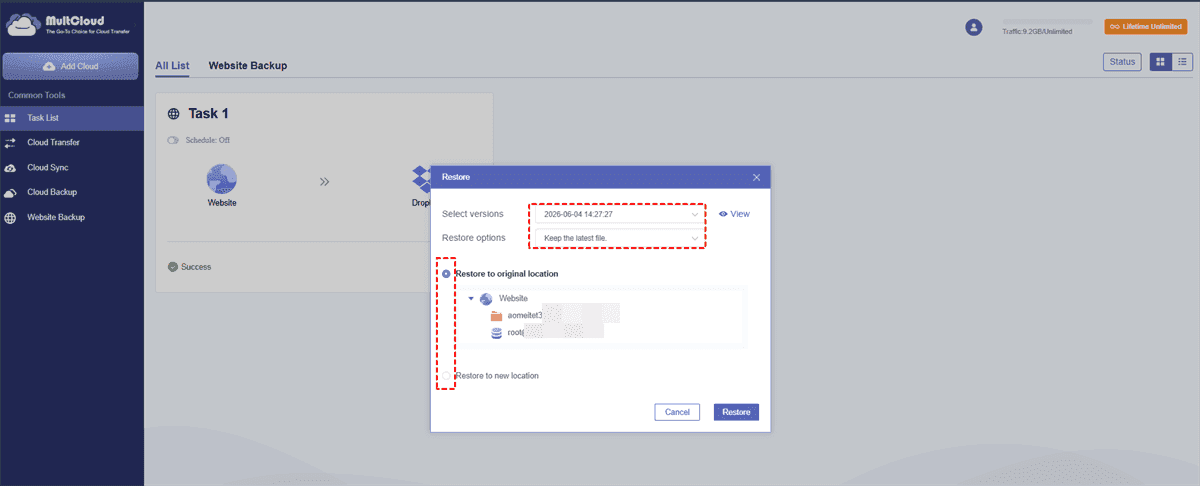
- If your website encounters any unexpected issues, simply find the backup task in the Task List, click the Restore button, and recover your website files to the version you need.
Bottom Line
Syncing files between Dropbox and an FTP server doesn't have to involve repeated downloads, manual uploads, or keeping your computer running during the process. With MultCloud Cloud Sync, you can create an automated connection between Dropbox and FTP, choose the sync mode that fits your workflow, and keep your files updated without managing the transfer manually.
MultCloud provides flexible options for varied requirements for moving files across the cloud drives. You can use Cloud Sync for continuous file updates or Cloud Backup when you need a safer way to protect important website files with recovery options. Also, you can use the Cloud Transfer function of MultCloud to quickly export Evernote to Google Drive or achieve other cloud-to-cloud transfer tasks between clouds as you wish.
FAQs
Q1: How to automatically sync Dropbox to FTP server?
You can automatically sync Dropbox to an FTP server by using a cloud sync tool like MultCloud. Connect both accounts, choose Dropbox as the source and FTP as the destination, select a sync mode, and enable scheduled sync to keep files updated automatically.
Q2: How to mirror Dropbox folders to FTP destination?
To mirror Dropbox folders to an FTP destination, choose a Mirror Sync mode in MultCloud that keeps the source and destination identical. Any additions, updates, or deletions in Dropbox will be reflected on the FTP server according to your sync settings.
Q3: Can I sync Dropbox to FTP in real time?
Yes. Real-time sync allows changes made in Dropbox to be immediately transferred to the FTP server. You can sync Dropbox to FTP in real time using MultCloud. This is useful when you need your FTP files to stay updated as soon as new files are added or existing files are modified.
Q4: Does Dropbox to FTP sync support file deletions?
Yes, some sync modes support file deletion synchronization. When enabled, deleted files in Dropbox can also be removed from the FTP destination. Make sure to choose the appropriate sync mode to avoid accidental data loss.
Q5: Will my folder structure be preserved during Dropbox to FTP sync?
Yes. If you use MultCloud, during Dropbox-to-FTP sync, the original folder structure is typically preserved. Files and subfolders will be transferred to the FTP destination while maintaining the same organization as they appear in Dropbox.
Q6: Can I sync only selected folders from Dropbox to FTP?
Yes. You can choose specific folders from Dropbox instead of syncing the entire account in MultCloud. This allows you to transfer only the files you need, reduce unnecessary data transfers, and better manage your FTP storage.
MultCloud Supports Clouds
-
Google Drive
-
Google Workspace
-
OneDrive
-
OneDrive for Business
-
SharePoint
-
Dropbox
-
Dropbox Business
-
MEGA
-
Google Photos
-
iCloud Photos
-
FTP
-
box
-
box for Business
-
pCloud
-
Baidu
-
Flickr
-
HiDrive
-
Yandex
-
NAS
-
WebDAV
-
MediaFire
-
iCloud Drive
-
WEB.DE
-
Evernote
-
Amazon S3
-
Wasabi
-
ownCloud
-
MySQL
-
Egnyte
-
Putio
-
ADrive
-
SugarSync
-
Backblaze
-
CloudMe
-
MyDrive
-
Cubby

Stay Updated With Our
Latest Tips
Add us as a preferred source on Google to never miss helpful guides.
 Add as preferred source >>