
User Case: How Can I Sync Dropbox with OneDrive?
"I want to backup my important files on Dropbox to OneDrive because I am afraid that these files might be deleted by accident. But I don't know how to directly sync my files from Dropbox to OneDrive, can anyone give me some suggestions?"
Losing files is a common problem and an annoying thing for users who use cloud drives to store data. In this situation, most users choose to use another cloud to backup files. Dropbox and OneDrive are two big brands in the field of cloud services. Like the user mentioned above, many users with Dropbox accounts also choose to backup files in OneDrive because OneDrive offers more free cloud storage and allow them to store and share files online, edit Office documents in free Office Web Apps. Against this backdrop, there comes a question: since neither Dropbox nor OneDrive allows to sync to other clouds directly, is it possible to sync Dropbox to OneDrive through other ways? The answer is YES! You can rely on a free third-party tool called MultCloud to help you.
Realize Dropbox to OneDrive Sync with MultCloud
MultCloud is a multiple cloud manager and supports many mainstream clouds like Google Drive, Dropbox, OneDrive, MEGA, etc. It has three main features: "Cloud Explorer", "Cloud Transfer" and "Cloud Sync". To directly backup Dropbox to OneDrive, you can make use of MultCloud "Cloud Sync" feature. The instruction below will show you how to perform the operation.
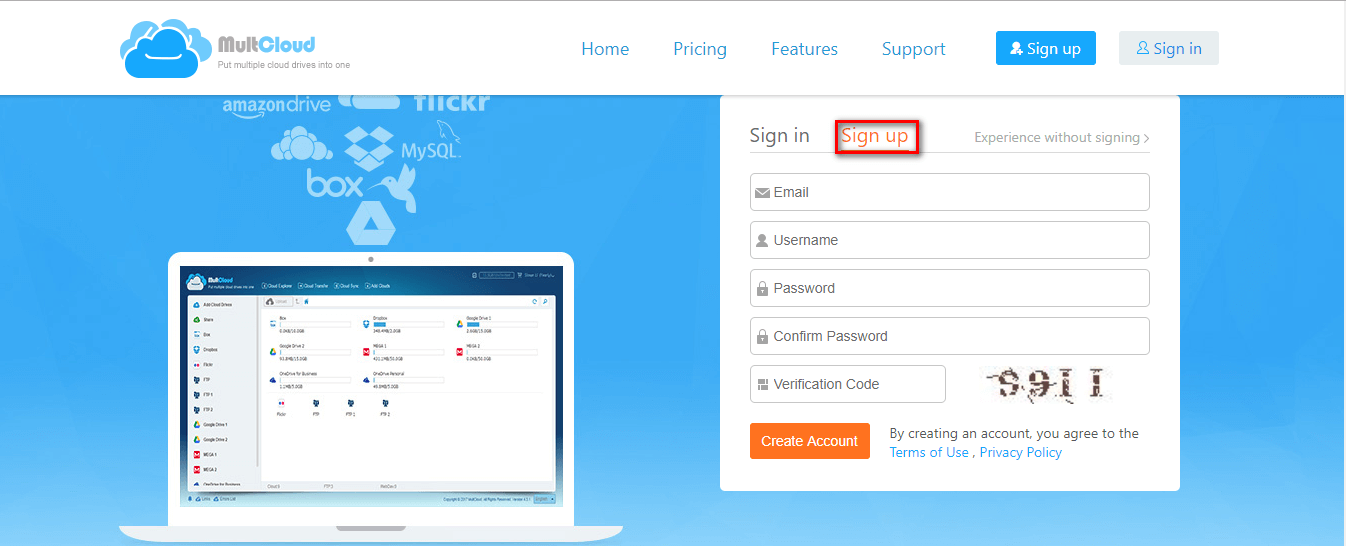
Step 1. Sign Up
To use MultCloud, you need to sign up first.
Step 2. Add clouds
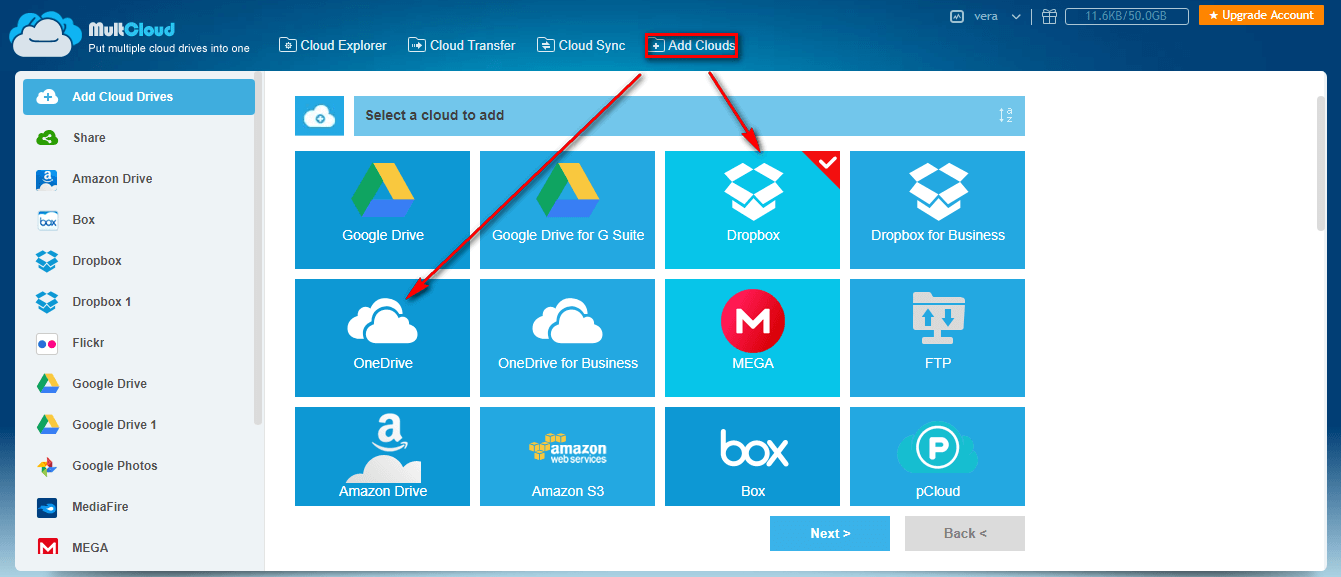
Click on "Add Clouds" icon and add Dropbox and OneDrive to MultCloud.
Notes:
- You are allowed to add one cloud for one time. If you need to add more than one cloud, please repeat "Add Clouds" operation.
- Once you add your cloud drives to MultCloud, you can directly use them via MultCloud without logging in and out.
Step 3. Create Cloud Sync Task
Click on "Cloud Sync" button and select Dropbox as the source and OneDrive as the destination. Then tap “Sync Now” to complete the task.

Wrapping Up
With the help of MultCloud, you can realize Dropbox to OneDrive sync in just 3 steps. As mentioned, MultCloud also has "Cloud Explorer" and "Cloud Transfer" features. With these two functions, you can manage your drives, share and remote upload files easily and transfer data from one cloud to other clouds. For example, you can manage multiple Google Drive accounts on one platform, remote upload files to MEGA or import Dropbox to OneDrive if necessary.
MultCloud Supports Clouds
-
Google Drive
-
Google Workspace
-
OneDrive
-
OneDrive for Business
-
SharePoint
-
Dropbox
-
Dropbox Business
-
MEGA
-
Google Photos
-
iCloud Photos
-
FTP
-
box
-
box for Business
-
pCloud
-
Baidu
-
Flickr
-
HiDrive
-
Yandex
-
NAS
-
WebDAV
-
MediaFire
-
iCloud Drive
-
WEB.DE
-
Evernote
-
Amazon S3
-
Wasabi
-
ownCloud
-
MySQL
-
Egnyte
-
Putio
-
ADrive
-
SugarSync
-
Backblaze
-
CloudMe
-
MyDrive
-
Cubby

Stay Updated With Our
Latest Tips
Add us as a preferred source on Google to never miss helpful guides.
 Add as preferred source >>