
Why Share OneDrive with Google Drive?
Both OneDrive and Google Drive are two popular cloud drive services that share similar online sharing and storing features for personal and business users. And they both provide helpful office suites for teams, companies, and schools to boost team collaboration by using Microsoft 365 or Google Workspace.
But according to the differences between Google Drive vs OneDrive, users may choose one of them to use in daily life on account of the price, storage, security, sharing function, and others. So, if you are a OneDrive user and your friends or team members use Google Drive, you may face the problem of how to share files from OneDrive to Google Drive user without downloading and uploading.
What’s more, if you are both a OneDrive user and a Google Drive user, learning how to share from OneDrive to Google Drive is also good for you to use two or more clouds at the same time in a better and easier way.
Compare All Methods to Share OneDrive with Google Drive
Before the details on how to share OneDrive with Google Drive, you have a direct concept about all the ways to share OneDrive with Google Drive. The main differences are listed below for reference.
| Feature | Method 1: Sharing Options | Method 2: Sub-Accounts | Method 3: Cloud Transfer |
|---|---|---|---|
| Best For | Sharing specific files externally | Ongoing team collaboration | Migrating your own data |
| Recipient Needs MultCloud | Yes (to save files) | Yes | No (you only need it) |
| Requires Paid Plan | No (Free) | No (3 sub-accounts only for free) | No (5GB free/month) |
| Files Stay in Sync | No (one-time share) | Yes (collaborative folder) | Yes (if scheduled) |
| Preserves Folder Structure | Yes | Yes | Yes |
Choose the best way to share OneDrive with Google Drive according to your different demands.
How to Share OneDrive with Google Drive in 3 Excellent Ways
Apart from manually downloading files from OneDrive and share files to Google Drive user through a hard drive, USB, or email, here we will show you how to share files from OneDrive to Google Drive users easily and time-savingly in 3 different ways for free. These simple methods are based on a free web-based cloud file manager named MultCloud.

MultCloud is a professional third-party multiple cloud storage manager that allows you to easily manage all your clouds with cloud built-in functions in an easy-to-use interface and seamlessly sync, backup, and transfer files between cloud storage services with a single click.
As one of the best cloud file managers, MultCloud offers multifunctional features for you to use clouds in the most efficient, convenient, and secure way. To solve the problem about how to share OneDrive to Google Drive user successfully, MultCloud provides Sub-accounts management, Cloud Transfer, and 3 sharing options like Public Share, Private Share, and Source Share for you to share from OneDrive to Google Drive according to different needs.

- 3 Sharing Options: Share public, private, or source link of OneDrive files from MultCloud to Google Drive user and let receiver save the shared files from MultCloud to Google Drive.
- Sub-accounts Management: As a OneDrive user, create and send MultCloud sub-accounts to Google Drive user and then collaborate together in a shared folder in MultCloud. (Only for subscribers.)
- Cloud Transfer: As a OneDrive and Google Drive user, add two accounts to MutlCloud and click one button to share files from OneDrive account to Google Drive account at once.
- MultCloud uses 256-bit AES encryption for all data transfers, ensuring your files remain private and secure during sharing
Now you can pick one function illustrated above and follow the step-by-step instructions below to share OneDrive to Google Drive successfully.
Prepare to Share OneDrive with Google Drive in MultCloud
Step 1. Create a MultCloud account for free.
Step 2. Choose OneDrive to add to MultCloud.
Method 1. Share OneDrive with Google Drive User by 3 Sharing Options
Best for: Sharing OneDrive-specific files with external Google Drive users (e.g., clients or partners).
Step 1. Open OneDrive from “My Cloud Drives” list.
Step 2. Tick the files or folders which you want to share to Google Drive user, then right-click and choose “Share” in the dropdown menu.
Step 3. Choose a sharing option in the pop-up window and click “Create Share”.
Step 4. Copy the sharing link and send it to Google Drive user.
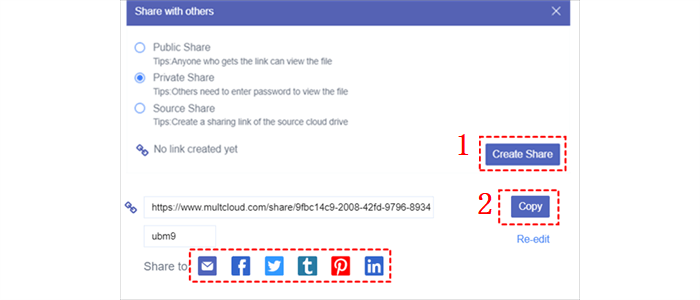
Tip: If you choose “Private Share”, you will get a random password for the receiver to access the shared files through sharing link.
Step 5. By clicking the sharing link, the Google Drive user can create an account and log in MultCloud to add his Google Drive to MultCloud.
Step 6. The receiver can tick the shared files in the web page and choose his Google Drive to save shared files to Google Drive.
- Website Backup: Backup your website and all the databases for security.
- One-key Move: Quick data transfer, sync, and backup among clouds.
- Email Archive: Protect emails to other clouds or local disks.
- Remote Upload: Effectively save web files to clouds via URL.
- Safe: Full-time 256-bit AES and OAuth authorization protections.
- Easy: Access and manage all clouds in one place with one login.
- Extensive: 30+ clouds and on-premise services are supported.
Method 2. Share OneDrive with Google Drive User by Sub-accounts Management
Best for: Ongoing team collaboration with a Google Drive user (only 3 sub-accounts for free; you can upgrade for more).
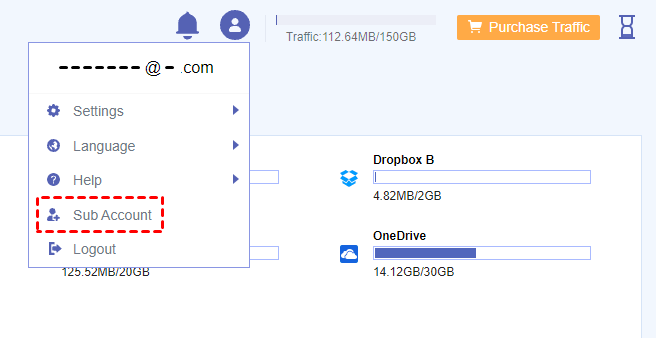
Step 1. Click the account icon in the upper right corner and choose “Sub Account” in the dropdown menu.
Step 2. Click “Add User” in the pop-up window to create a sub-account with username and password for Google Drive user.
Step 3. Click “Assign Folder” to assign a folder in your OneDrive as the shared folder for collaborating with Google Drive user.
Step 4. Choose the access permission for the Google Drive user to access your shared OneDrive folder.
Step 5. Send the sub-account to Google Drive user.
Step 6. When the receiver enters MultCloud with the sub-account and add his Google Drive to MultCloud, he can save your shared OneDrive files from “Team Files” to his Google Drive by “Copy to”.
Method 3. Share OneDrive with Google Drive of Your Own by Cloud Transfer
Best for: If you own both accounts and want to permanently move or sync your data from OneDrive to Google Drive.
Step 1. Click “Add Cloud” and choose Google Drive to add your Google Drive to MultCloud.
Step 2. Enter the “Cloud Transfer” page in MultCloud.
Step 3. Select OneDrive or files and folders in it as the source, then select Google Drive or a folder in it as the destination.
Tips:
- In “Options”, you can use “Filter” to ignore or only share files with certain file extensions from OneDrive to Google Drive. Or you can turn “email notification” on to be informed as soon as the Cloud Transfer task is done.
- In “Schedule”, you can choose a monthly, weekly, or daily plan to let MultCloud automatically share files from OneDrive to Google Drive.
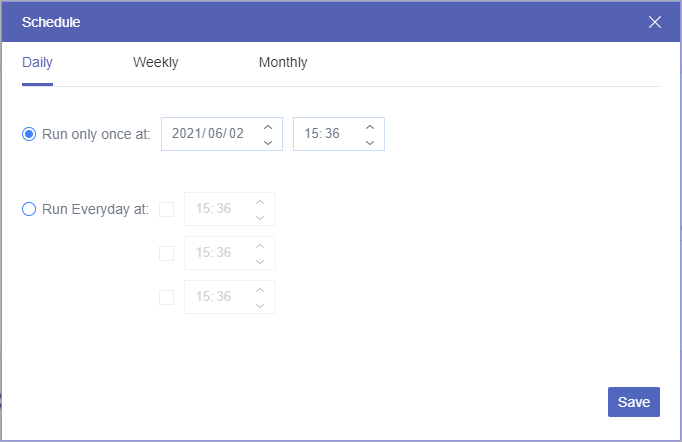
Step 4. Click “Transfer Now” to share from OneDrive to Google Drive of your account immediately.
Tips:
- You can close the website or shut down your device right after create the Cloud Transfer task since MultCloud supports offline transfer.
- To share or transfer files from Google Drive to OneDrive, you just need to switch the source drive and the destination drive around.
- MultCloud offers 5 GB free data traffic per month for you to transfer data across clouds. If it’s not enough, you can upgrade to higher level of subscription to get more data traffic and incredibly fast transfer speed.
FAQs About Sharing OneDrive with Google Drive
Q1: Can I share a OneDrive file directly with someone who only uses Google Drive?
A: Not directly. OneDrive's native sharing only works with Microsoft accounts. However, you can use a third-party tool like MultCloud to generate a shareable link that a Google Drive user can open and save to their own drive.
Q2: Which sharing method is best for ongoing team collaboration?
A: Method 2 (Sub-accounts Management) is ideal for collaboration. It creates a shared folder where both you and your Google Drive teammate can access and edit files together, keeping everything in sync.
Q3: Does the person I'm sharing with need a MultCloud account?
A: For Method 1 (Sharing Options), yes, the recipient needs a free MultCloud account to save the shared files to their Google Drive. For Method 3 (Cloud Transfer), only you need the account since you own both drives.
Q4: Is there a free way to share OneDrive files with a Google Drive user?
A: Yes. Method 1 (Sharing Options) is completely free. You can create a public or private share link and send it to anyone. Your recipient just needs a free MultCloud account to download the files to their Google Drive.
Q5: How secure is sharing files through MultCloud?
A: MultCloud uses 256-bit AES encryption for all data transfers. Your files are not permanently stored on their servers. However, you are granting third-party access to your cloud accounts, so always review their privacy policy before use.
Q6: What's the difference between "Public Share" and "Private Share"?
A: Public Share generates a link anyone can access without a password. Private Share creates a password-protected link, adding an extra layer of security for sensitive files.
Q7: Can I schedule automatic sharing or syncing between OneDrive and Google Drive?
A: Yes, if you use Method 3 (Cloud Transfer). The "Schedule" feature lets you set up daily, weekly, or monthly transfers to keep your drives automatically synced without manual effort.
Q8: Will my folder structure be preserved when sharing?
A: Yes. All three methods preserve your original folder hierarchy, so the recipient receives organized files just as you arranged them.
Conclusion
By looking through the article about how to share OneDrive with Google Drive in 3 excellent methods, you can choose one solution for how to share files from OneDrive to Google Drive according to your specific needs. What’s more, considering that MultCloud also supports business cloud accounts, you can also use MultCloud to migrate Google Shared Drive to OneDrive for Business and other clouds in the easiest way as well.
MultCloud Supports Clouds
-
Google Drive
-
Google Workspace
-
OneDrive
-
OneDrive for Business
-
SharePoint
-
Dropbox
-
Dropbox Business
-
MEGA
-
Google Photos
-
iCloud Photos
-
FTP
-
box
-
box for Business
-
pCloud
-
Baidu
-
Flickr
-
HiDrive
-
Yandex
-
NAS
-
WebDAV
-
MediaFire
-
iCloud Drive
-
WEB.DE
-
Evernote
-
Amazon S3
-
Wasabi
-
ownCloud
-
MySQL
-
Egnyte
-
Putio
-
ADrive
-
SugarSync
-
Backblaze
-
CloudMe
-
MyDrive
-
Cubby

Stay Updated With Our
Latest Tips
Add us as a preferred source on Google to never miss helpful guides.
 Add as preferred source >>