
Can You Transfer Files Directly Between Two FTP Servers?
User Case:
I use two FTP servers A and B. I need to transfer a certain directory tree (and all files under it) from FTP server A to FTP server B. Is there any way that I can achieve this with my local device without performing anything on FTP servers A and B?
FTP is a famous file transfer protocol program that provides a way for computers to link to each other to transfer files without requiring the Internet. It is commonly used on school networks, offices, or web publishers. As your website or business grows, you will frequently need to transfer files across FTP servers. This usually happens during switching web hosts, migrating to a new server, consolidating data from multiple FTP accounts, or keeping two FTP servers synchronized. In these situations, many users wonder: Can you transfer files directly between two FTP servers?
.png)
The answer is yes, but it depends on how you do it. If both FTP servers support FXP (File eXchange Protocol), files can be transferred directly between them without passing through your local computer. However, for security reasons, most web hosting providers disable FXP, making it unavailable in many real-world scenarios.
Because of this limitation, many users still rely on an FTP client to download files from the source server and then upload them to the destination server. While this method works, it can be slow, consumes local bandwidth, and requires your computer to remain online throughout the transfer, especially when migrating large websites. Within this guide, you can easily achieve direct FTP to FTP transfer by using a free web-based multiple cloud storage manager, MultCloud.
Why Transfer Files Between Two FTP Servers with MultCloud?
MultCloud is a professional cloud file manager that can help you securely manage and transfer files between FTP servers, WebDAV, and 30+ leading cloud storage services seamlessly with a single click in an easy-to-use interface. MultCloud shares so many great features to make your cloud management the most convenient and efficient.
One-key Fast and Automatic Cloud-to-cloud Transfer: By clicking on one button, you can quickly and safely transfer data across clouds with a schedule plan, email notification, and file filter without any risk of data loss.
Reliable Transfer/Sync/Backup Experience: You can make full use of Cloud Transfer, Team Transfer (business cloud accounts), Cloud Sync (10 flexible sync modes), and Cloud Backup (backup version management) according to your needs.
Manage Multiple Clouds in the Best Way: MultCloud provides basic cloud built-in functions like upload, download, delete, preview, rename, cut, copy, 3 sharing options like private, public, source, and the Remote Upload function to help you easily access Google Share Drive and other clouds and use them in daily life without switching accounts.
Top Security to Protect Accounts and Data: The OAuth authorization system supported by major clouds like Google Drive and Dropbox is adopted by MultCloud to connect your clouds securely without recording private information like usernames and passwords. And the 256-bit AES Encryption will give your data in the cloud for full-time protection.
You can now follow the clear instructions below to use MultCloud to transfer files from one FTP server to another.
How to Directly Transfer Files Between Two FTP Servers with MultCloud: 2 Quick Ways
When you log in to MultCloud, you will find two useful features that can help you copy from one FTP to another, the “Cloud Transfer” and “Copy to” functions.
- Cloud Transfer: Transfer a large number of files or you have the demand for automatic transfer.
- Copy to: Copy files from one place to more destinations at the same time.
Method 1. Move Files between Two FTP Servers by "Cloud Transfer"
Step 1. Create a MultCloud account on the official website and log in. You can also directly log in with your Google or Facebook account.
Step 2. Click "Add Cloud" and choose the "FTP" icon, then fill in the information of one FTP server in the pop-up window to add FTP to MultCloud. After that, repeat this step to add another FTP server account to MultCloud as well.
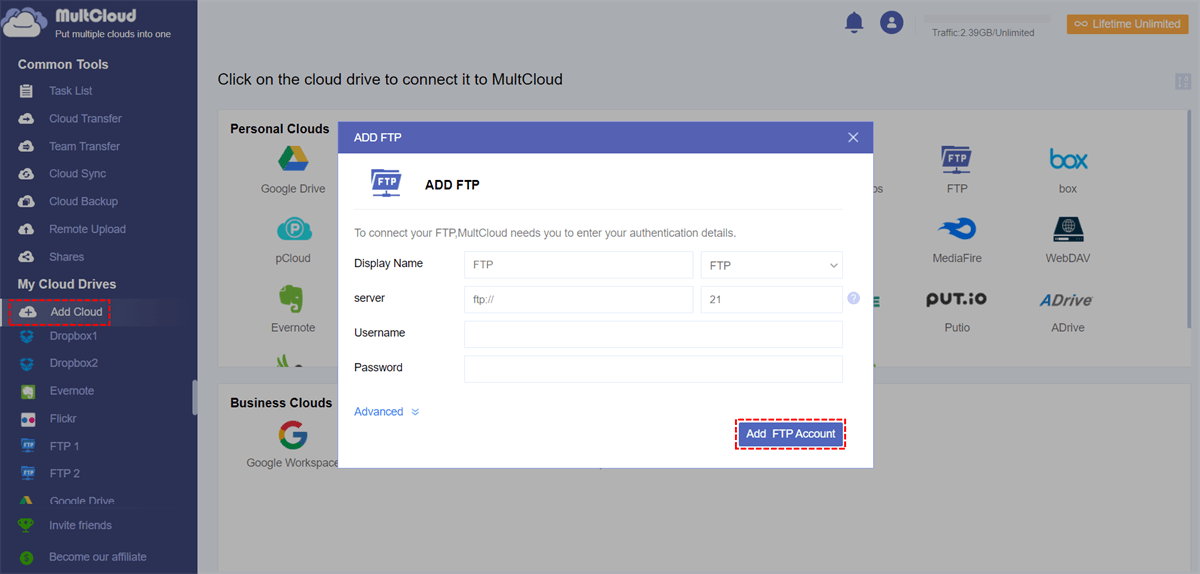
Tip: You can add all your clouds to MultCloud for free.
Step 3. Switch to the “Cloud Transfer” page, select an FTP server or files and folders in it as the source, then select another FTP server or a folder in it as the destination.
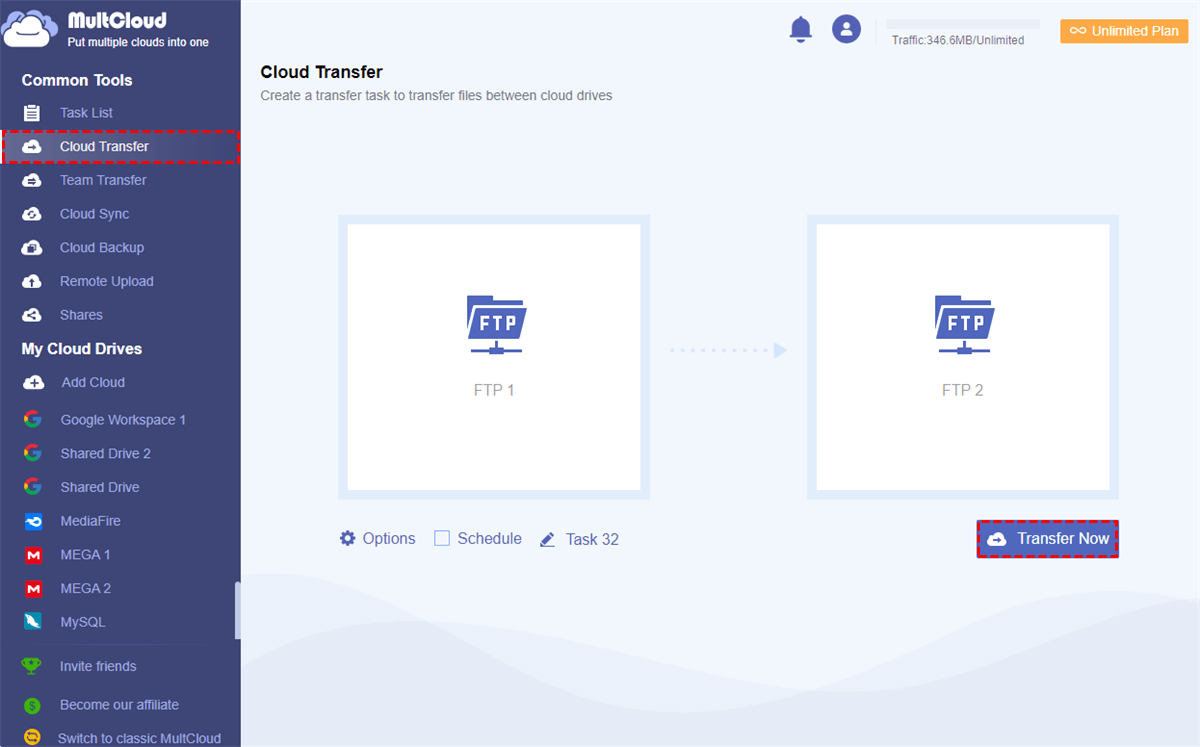
Tips:
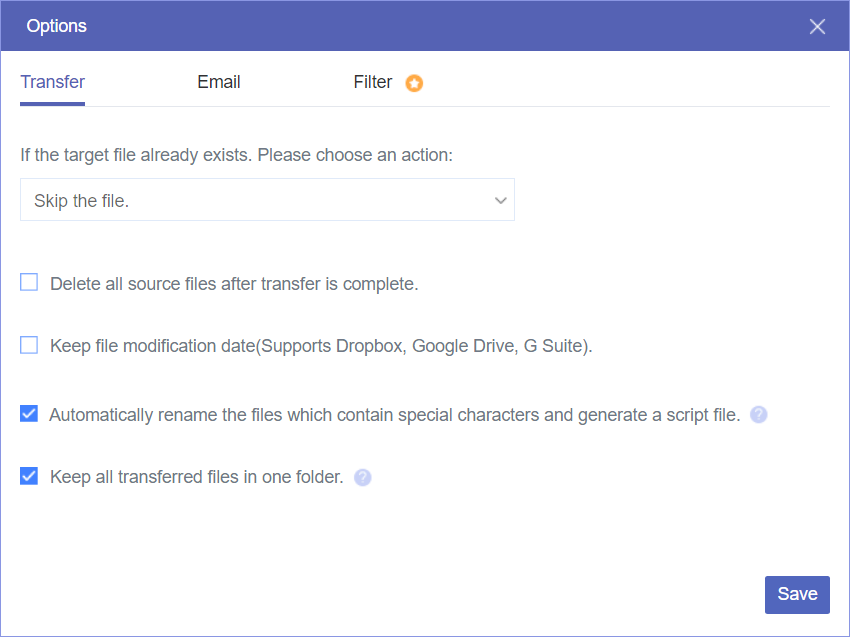
- In “Options”, you can choose “Delete all source files after transfer is complete.” to realize FTP to FTP migration, or you can use “Filter” to exclude or include files with certain extensions when transferring. What’s more, the “Email” can timely inform you when the task is done.
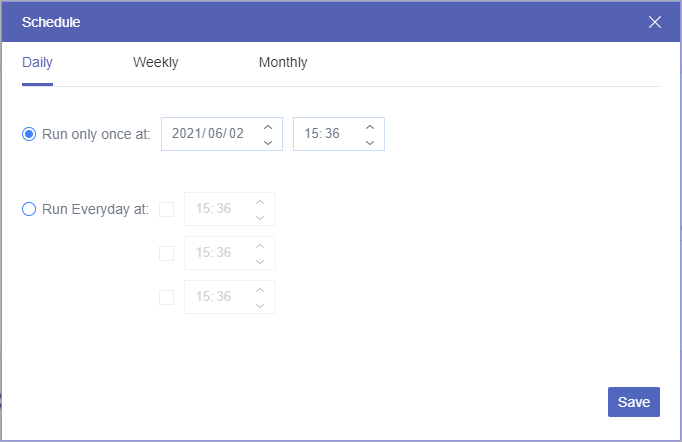
- In “Schedule”, you can choose a daily, weekly, or monthly plan for MultCloud to automatically perform scheduled cloud file transfer tasks.
Step 4. Click on “Transfer Now” and MultCloud will transfer files and folders between two FTP servers immediately. MultCloud supports offline transfer so that you don’t have to wait for the task to be done.
Tips:
- You will receive 5 GB of free data traffic per month to transfer data across clouds.
- If the free data traffic is not enough, especially for enterprise users with large-scale file transfer demands, you can subscribe MultCloud to get more data traffic with superfast transfer speed.
Method 2. Copy Files between Two FTP Servers by "Copy to"
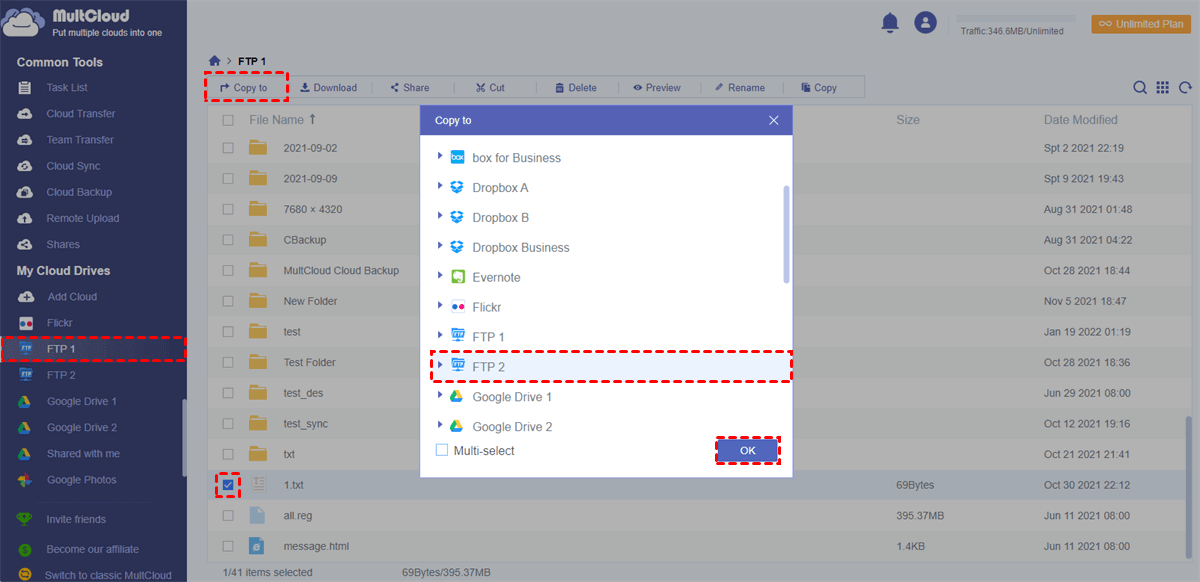
Step 1. Open an FTP server in MultCloud, and tick the files and folders which you want to transfer.
Step 2. Click “Copy to” in the feature bar above and choose another FTP server in the pop-up window.
Step 3. Click the purple button “OK” and the selected data will be copied to the target FTP server at once.
Bonus Tip: Back Up Your FTP Website Files with MultCloud
For many website owners, transferring files between FTP servers is only part of their maintenance routine. Regular backups are just as important. While FTP transfers help move or synchronize website files, backups ensure you can recover your site after accidental deletion, failed updates, server crashes, or malware attacks. Fortunately, MultCloud offers a dedicated Website Backup feature that lets you back up your website automatically without downloading files locally.
Step 1. Sign in to MultCloud account and locate "Website Backup" in the left side bar.
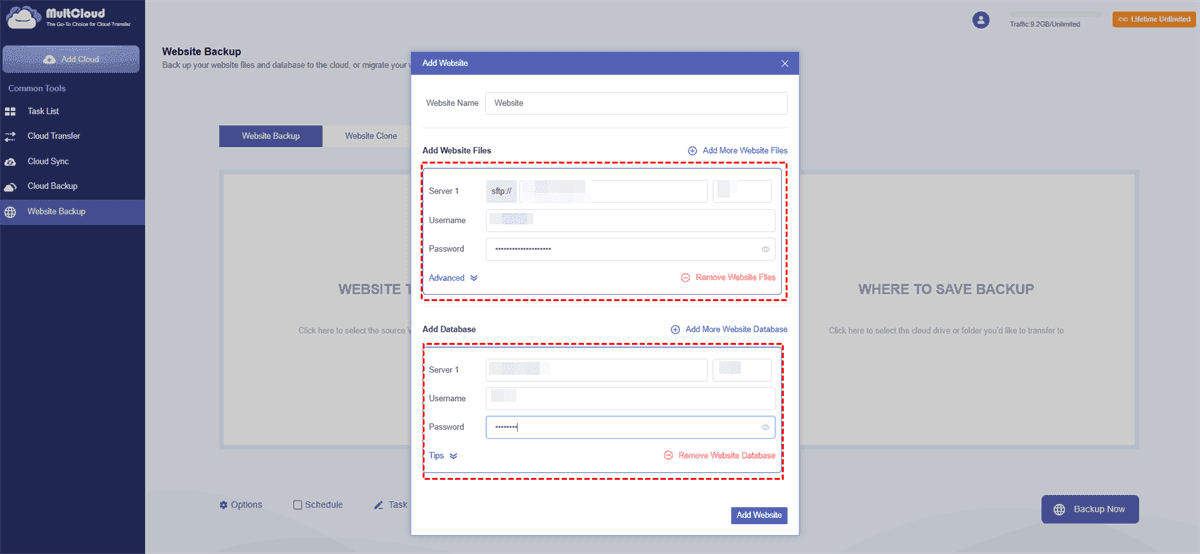
Step 2. Click "WEBSITE TO BACKUP" > "Add Website" and enter FTP credentials to add your FTP server. Add the cloud storage or another FTP server with the same way.
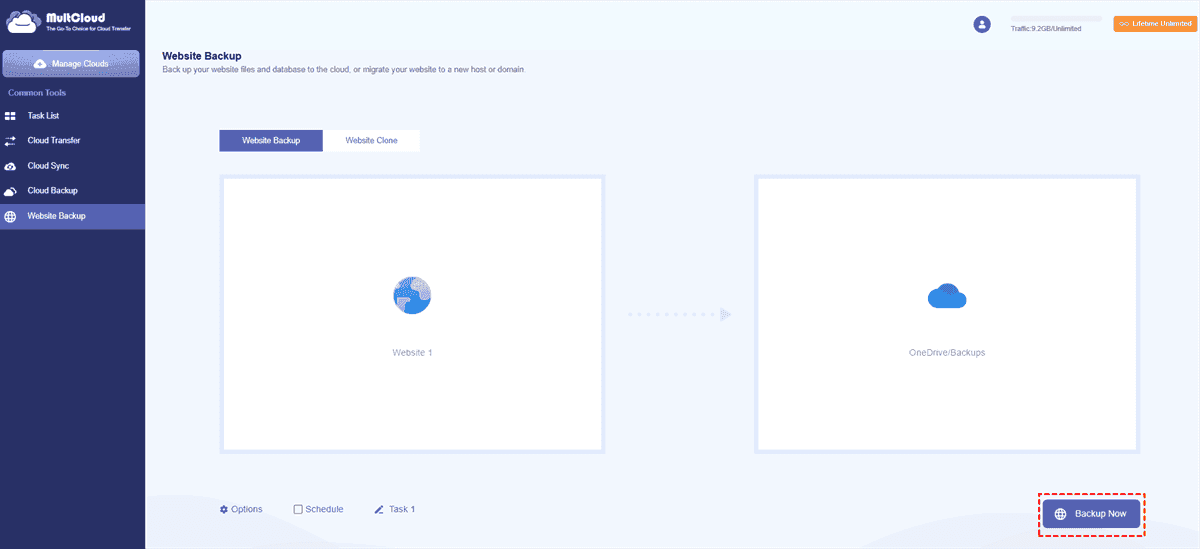
Step 3. Set up email notifications, filter filters or scheduled task in the "Options" or "Schedule" button based on your need. Then, click "Backup Now" to begin the process.
Choose the Right MultCloud Feature for Your FTP Workflow
Transferring files between two FTP servers is only one part of FTP management. Depending on what you want to accomplish, you may need different features. Whether you're keeping folders synchronized, making a quick copy of your files, or protecting your website with backups, MultCloud offers a dedicated feature for each task.
| Feature | Best for | Why Choose It |
|---|---|---|
| Cloud Sync | Manage hundreds or thousands of files automatically. | Designed for large-scale file management with automatic synchronization and scheduling. |
| Copy to | Copy only a few files or folders occasionally. | Best for quick, one-time copies without creating a long-term sync relationship. |
| Website Backup | Protect your entire website from accidental deletion, failed updates, or server issues. | Creates recoverable backup versions that let you restore your website whenever something goes wrong. |
In the End
Whether you're migrating a website, changing hosting providers, or consolidating data across multiple servers, transferring files between two FTP servers doesn't have to be a slow, manual process. With MultCloud Cloud Sync, you can move files directly between FTP servers online without downloading them to your computer, saving both time and local bandwidth.
Beyond FTP migration, MultCloud also offers a complete suite of file management solutions. You can use Website Backup to create versioned backups of your FTP website for quick recovery, and Cloud Backup to protect important files with multiple restore points. You can also manage multiple cloud and FTP accounts from a single interface. If you're looking for a faster, smarter, and more reliable way to manage FTP data, give MultCloud a try.
FAQs
Is MultCloud compatible with all FTP servers?
MultCloud supports a wide range of FTP servers, making it highly compatible with various providers.
Can I schedule automatic transfers using MultCloud?
Yes, MultCloud allows users to schedule automatic transfers for added convenience.
Does MultCloud store my files on its servers?
No, MultCloud does not store any user files; all transfers are direct between the connected servers.
Is MultCloud a paid service?
MultCloud offers both free and premium subscription options, with additional features available to premium users.
Can I transfer files between different cloud storage providers, not just FTP servers?
Absolutely! MultCloud supports file transfers between a wide range of cloud storage providers, ensuring seamless data management across platforms.
Does FTP-to-FTP transfer preserve folder structure?
Yes. MultCloud preserve the original folder structure by default, so files and subfolders remain organized in the destination server. This makes website migration and data management easier while reducing the risk of misplaced files.
Can I transfer files between FTP and SFTP servers?
Yes. Many file transfer services, including MultCloud, support transfers between FTP and SFTP servers. Simply connect both accounts, choose the source and destination, and start the transfer. This allows you to migrate data or move files between different protocols without downloading them to your local computer.
MultCloud Supports Clouds
-
Google Drive
-
Google Workspace
-
OneDrive
-
OneDrive for Business
-
SharePoint
-
Dropbox
-
Dropbox Business
-
MEGA
-
Google Photos
-
iCloud Photos
-
FTP
-
box
-
box for Business
-
pCloud
-
Baidu
-
Flickr
-
HiDrive
-
Yandex
-
NAS
-
WebDAV
-
MediaFire
-
iCloud Drive
-
WEB.DE
-
Evernote
-
Amazon S3
-
Wasabi
-
ownCloud
-
MySQL
-
Egnyte
-
Putio
-
ADrive
-
SugarSync
-
Backblaze
-
CloudMe
-
MyDrive
-
Cubby

Stay Updated With Our
Latest Tips
Add us as a preferred source on Google to never miss helpful guides.
 Add as preferred source >>